git 명령어Git commands
git 명령어Git commands커밋 그래프와 포인터 움직임 중심의 Git 명령어 정리Git commands, organized around the commit graph and how pointers move
Contents
Git은 커밋을 만들고, 브랜치를 움직이고, 갈라진 작업을 다시 합치는 도구다. 커밋 그래프에서 포인터가 어디로 움직이는지를 기준으로 보면 훨씬 이해하기 쉬웠다.
1. Git의 기본 단위
커밋은 프로젝트의 특정 시점을 저장한 기록이다. 브랜치는 그 커밋을 가리키는 이름표이고, HEAD는 지금 내가 보고 있는 위치다.
- 커밋: 변경사항이 저장된 지점
- 브랜치: 특정 커밋을 가리키는 포인터
- HEAD: 현재 작업 중인 위치
- 원격 추적 브랜치: 원격 브랜치의 상태를 로컬에서 기억하는 포인터
2. 기록
변경사항은 먼저 스테이징 영역에 올라간 뒤 커밋으로 기록된다.
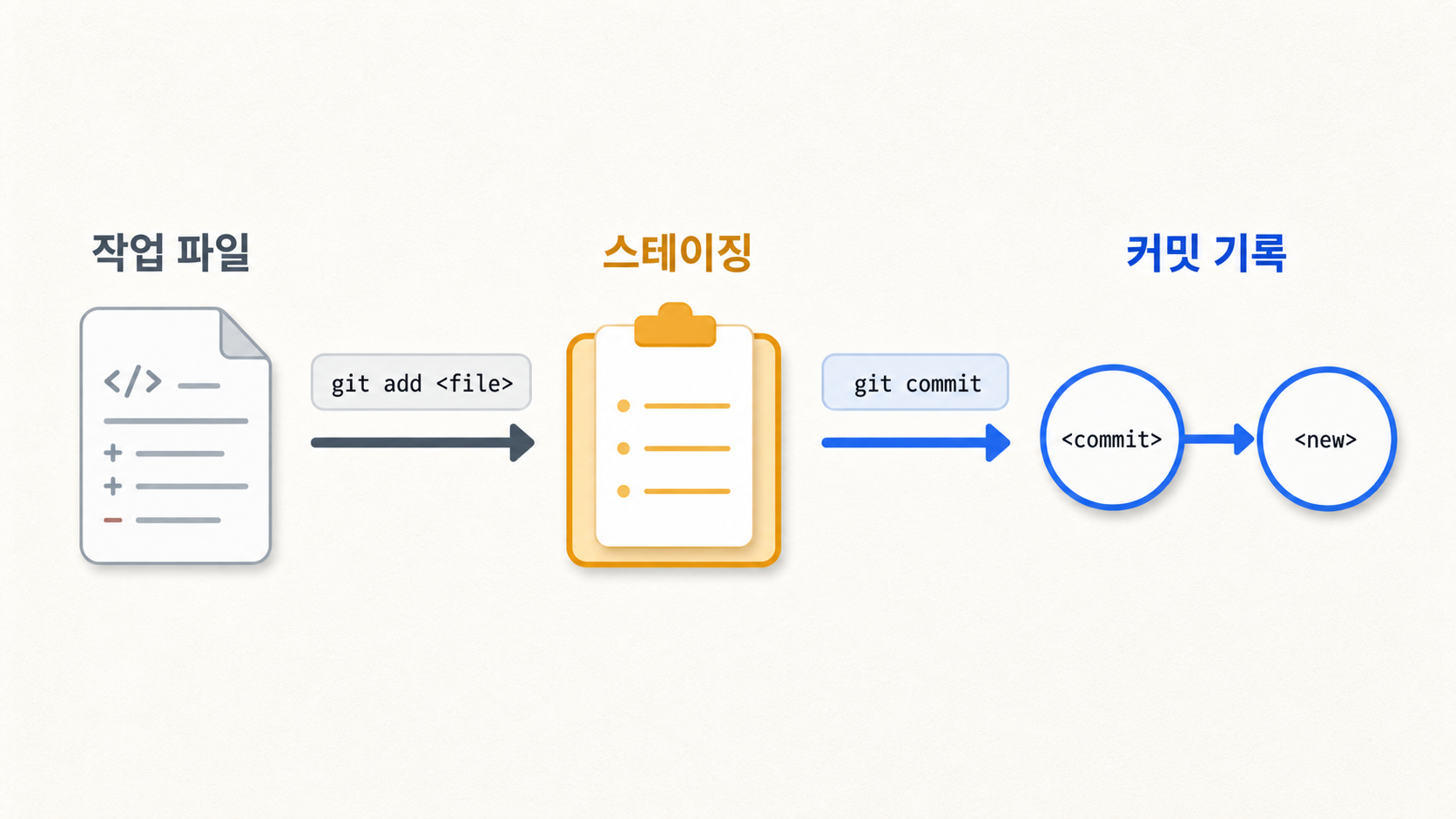
git add는 작업 파일의 변경사항을 스테이징 영역으로 올리고, git commit은 스테이징된 내용만 새 커밋으로 저장한다.
git add .현재 디렉터리 아래 변경사항을 스테이징git add <file>특정 파일만 스테이징git commit -m "message"스테이징된 변경사항을 커밋으로 저장git commit -am "message"이미 추적 중인 파일을 add와 commit까지 한 번에 처리git commit --amend마지막 커밋의 메시지나 내용 수정
--amend는 마지막 커밋을 새 커밋으로 다시 만드는 명령이다. 이미 원격에 올린 커밋에는 신중하게 써야 한다.
3. 이동
브랜치는 작업 흐름을 나누기 위해 만든다. 만든 브랜치로 이동한 뒤 커밋하면, 그 브랜치 포인터가 새 커밋으로 이동한다.
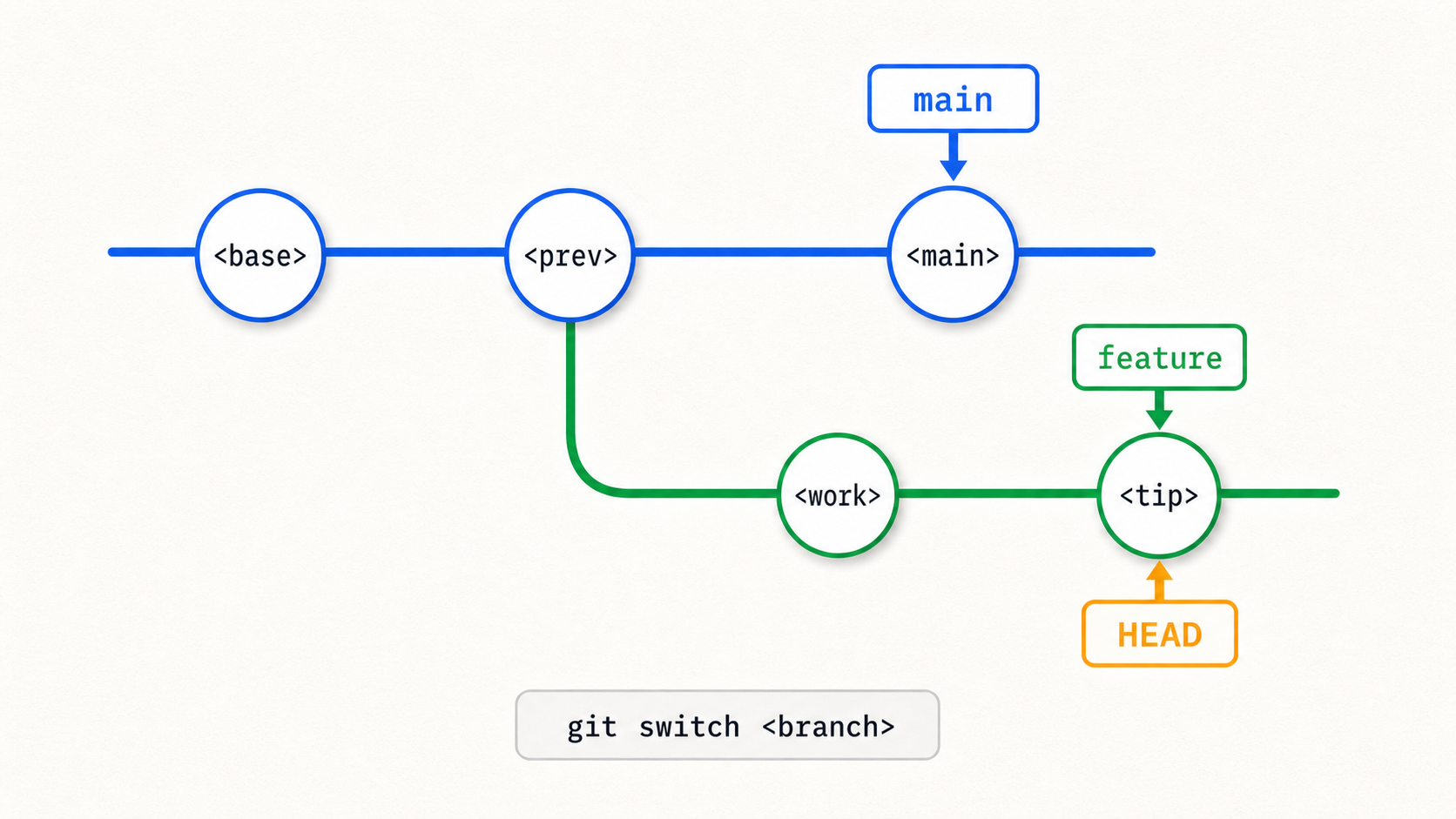
HEAD가 feature에 붙어 있으면 지금 작업 위치는 feature다. 이 상태에서 커밋하면 새 커밋은 feature 뒤에 이어진다.
git branch브랜치 목록 확인git branch <branch>현재 위치에 새 브랜치 생성git branch -d <branch>병합된 브랜치 삭제git branch -D <branch>브랜치 강제 삭제git branch -f <branch> <where>브랜치를 특정 위치로 강제 이동git checkout <branch>/git switch <branch>브랜치 이동git checkout -b <branch>/git switch -c <branch>브랜치 생성 후 이동
상대 참조를 쓰면 커밋 해시를 몰라도 원하는 위치를 가리킬 수 있다.
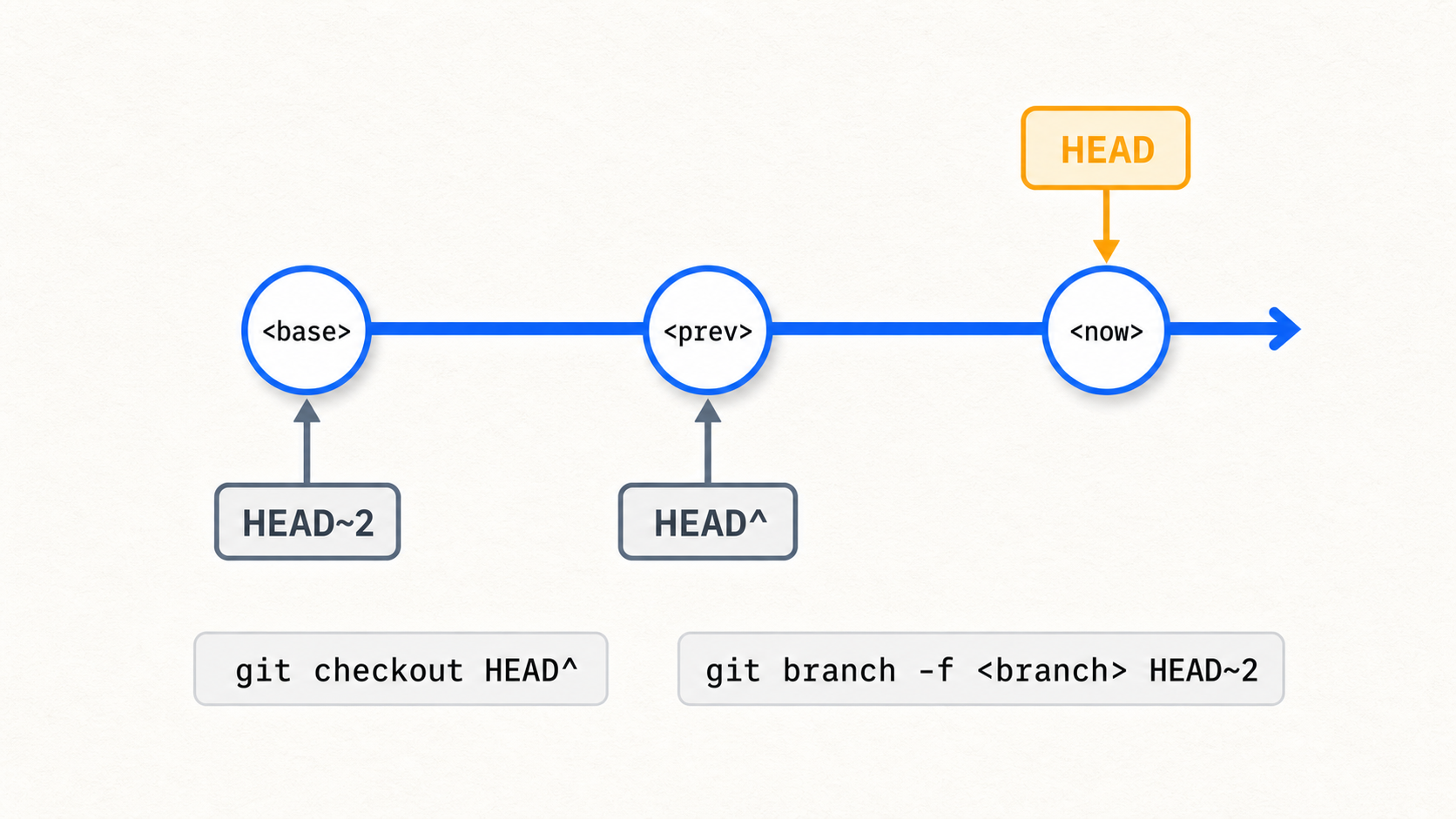
HEAD^는 현재 커밋의 부모를, HEAD~2는 현재 위치에서 두 단계 위의 커밋을 가리킨다.
HEAD^현재 커밋의 부모HEAD~3현재 위치에서 세 단계 위 커밋<branch>^2merge commit에서 두 번째 부모
4. 병합
브랜치를 합치는 대표적인 방법은 merge와 rebase다. 둘 다 작업을 합치지만 남는 커밋 그래프가 다르다.
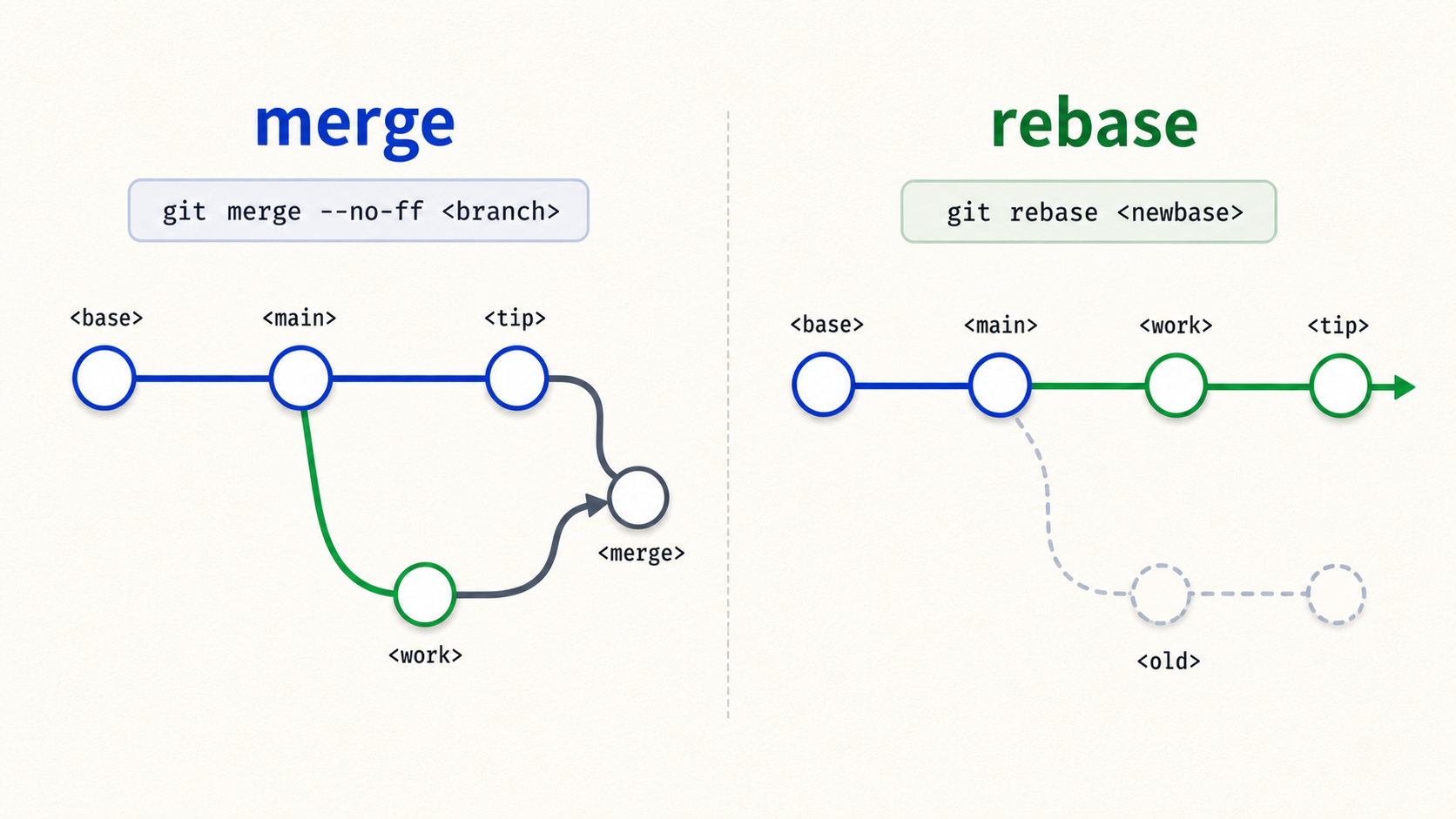
merge는 다른 브랜치의 변경사항을 현재 브랜치에 합친다. 단, fast-forward가 가능하면 병합 커밋 없이 브랜치 포인터만 이동하고, --no-ff를 쓰면 병합 커밋을 강제로 남긴다. 위 그림의 merge는 fast-forward가 아닌 경우다.
rebase는 작업 커밋을 새 기준 브랜치 뒤에 다시 쌓아 한 줄처럼 정리한다.
git merge <branch>현재 브랜치에 지정한 브랜치를 병합git merge --continue충돌 해결 후 merge 계속 진행git merge --abort진행 중인 merge 취소git merge --no-ff <branch>fast-forward가 가능해도 merge commit 생성git rebase <newbase>현재 브랜치의 커밋을 새 기준 위로 다시 쌓기git rebase <newbase> <branch>지정한 브랜치를 새 기준 위로 재배치
이미 공유한 커밋에는 rebase를 조심해서 써야 한다. 커밋 해시가 바뀌기 때문이다.
5. 되돌리기와 커밋 선택
되돌리기 명령어 중 reset은 브랜치 포인터를 과거로 옮기고, revert는 취소 내용을 새 커밋으로 남긴다.
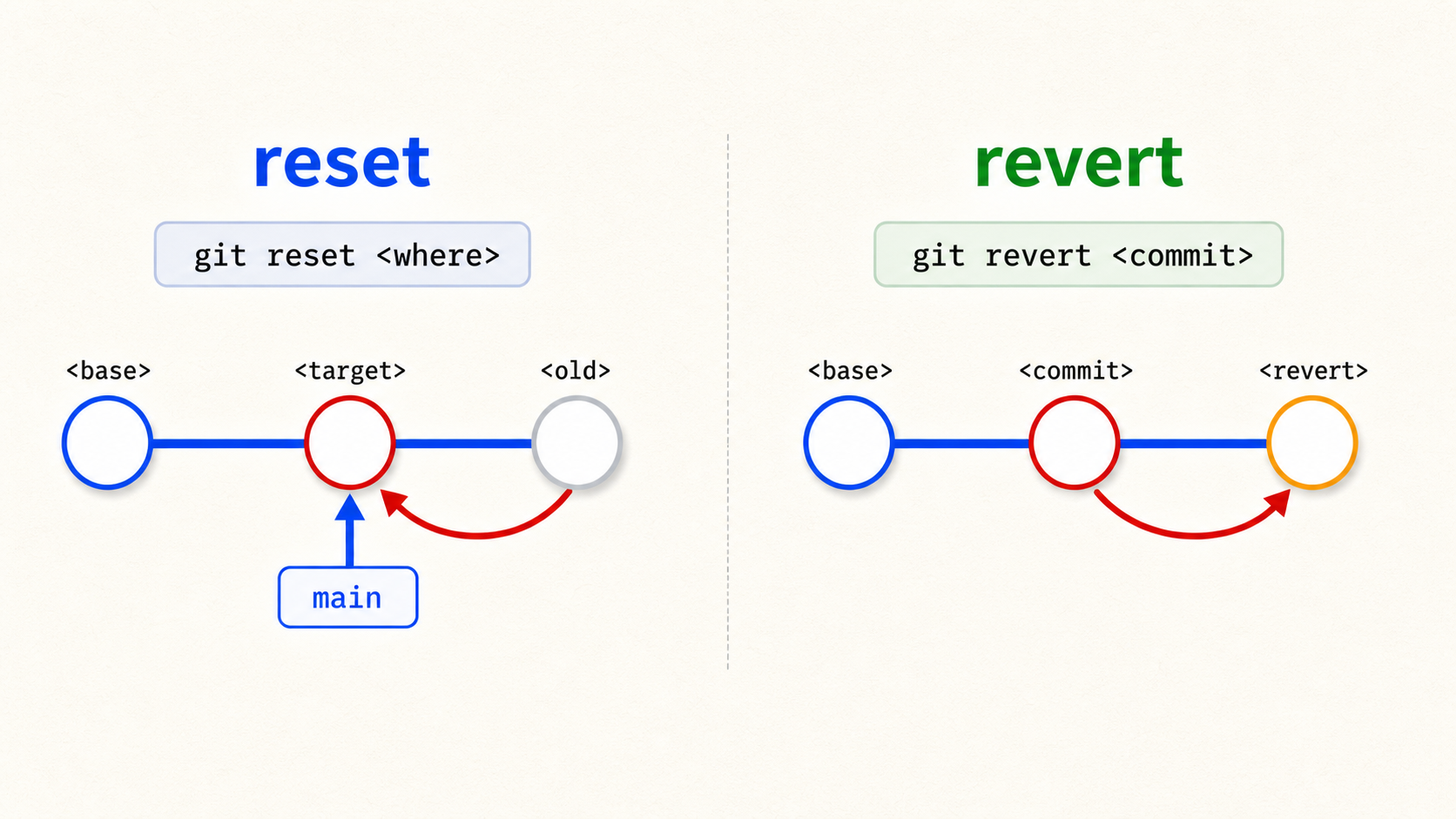
reset은 현재 브랜치가 가리키는 위치를 바꾼다. revert는 기존 커밋을 지우지 않고, 반대 변경사항을 담은 새 커밋을 추가한다.
git reset HEAD~1현재 브랜치를 한 커밋 이전으로 이동git reset --soft HEAD~1커밋만 취소하고 스테이징 유지git reset --mixed HEAD~1커밋과 스테이징 취소, 작업 파일은 유지git reset --hard HEAD~1커밋, 스테이징, 작업 파일 변경까지 되돌림git revert HEAD변경을 취소하는 새 커밋 생성
아직 공유하지 않은 로컬 커밋은 reset으로 정리할 수 있고, 이미 공유한 커밋은 revert로 되돌리는 편이 안전하다.
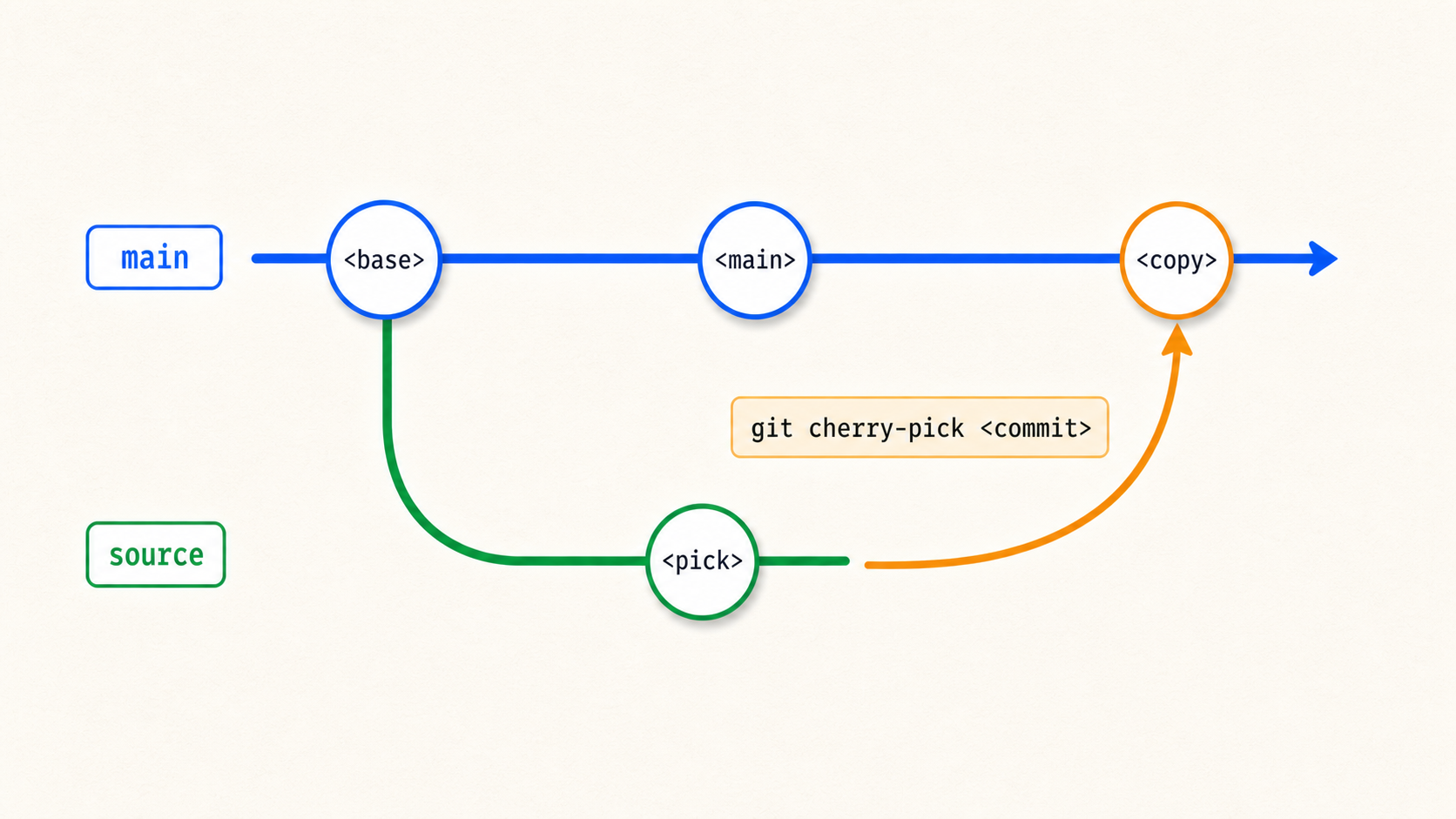
cherry-pick은 다른 브랜치에 있는 특정 커밋의 변경사항만 골라 현재 브랜치 뒤에 새 커밋으로 붙인다.
git cherry-pick <commit1> <commit2>특정 커밋만 현재 브랜치에 적용
cherry-pick은 작업 트리가 깨끗한 상태에서 실행하는 편이 안전하다. 충돌이 나면 충돌을 해결한 뒤 계속 진행해야 한다.
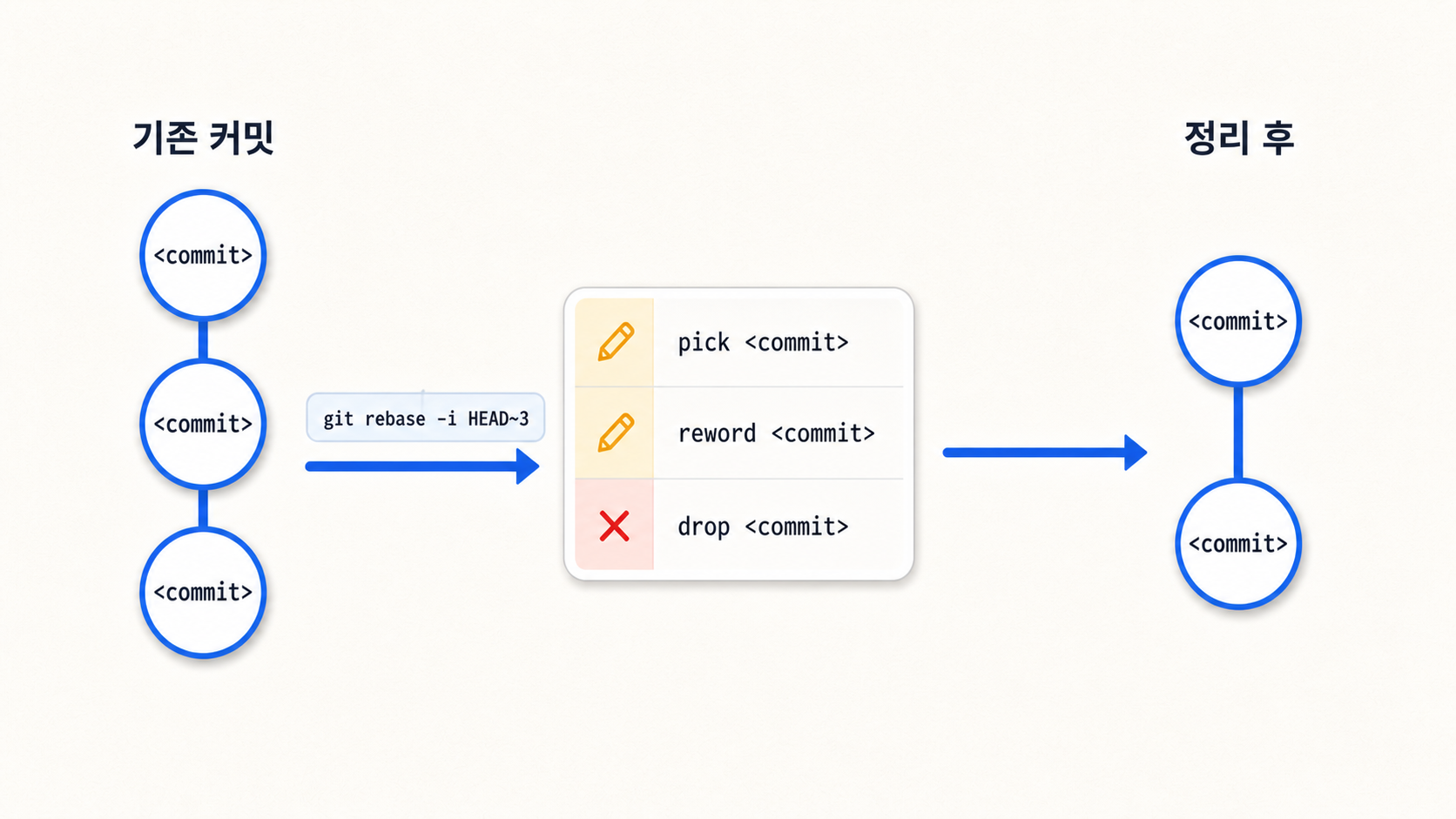
rebase -i로는 최근 커밋의 순서, 메시지, 포함 여부를 정리한다.
git rebase -i HEAD~3최근 커밋의 순서, 메시지, 포함 여부 편집
자주 쓰는 선택지는 pick, reword, edit, squash, fixup, drop이다. 커밋을 남길지, 메시지를 바꿀지, 합칠지, 제거할지를 여기서 정한다.
6. 표시와 임시 보관
태그는 중요한 커밋에 붙이는 고정 이름표다. stash는 아직 커밋하기 애매한 변경사항을 잠깐 치워두는 용도다.
git tag <tag>현재 HEAD에 lightweight tag 추가git tag <tag> <commit>지정한 커밋에 lightweight tag 추가git tag -a <tag> -m "message"annotated tag 생성git push origin <tag>특정 태그를 원격에 업로드git push origin --tags로컬의 모든 태그를 원격에 업로드git describe가까운 annotated tag 기준으로 현재 위치 설명git describe --tagslightweight tag까지 포함해 가까운 태그 기준으로 설명
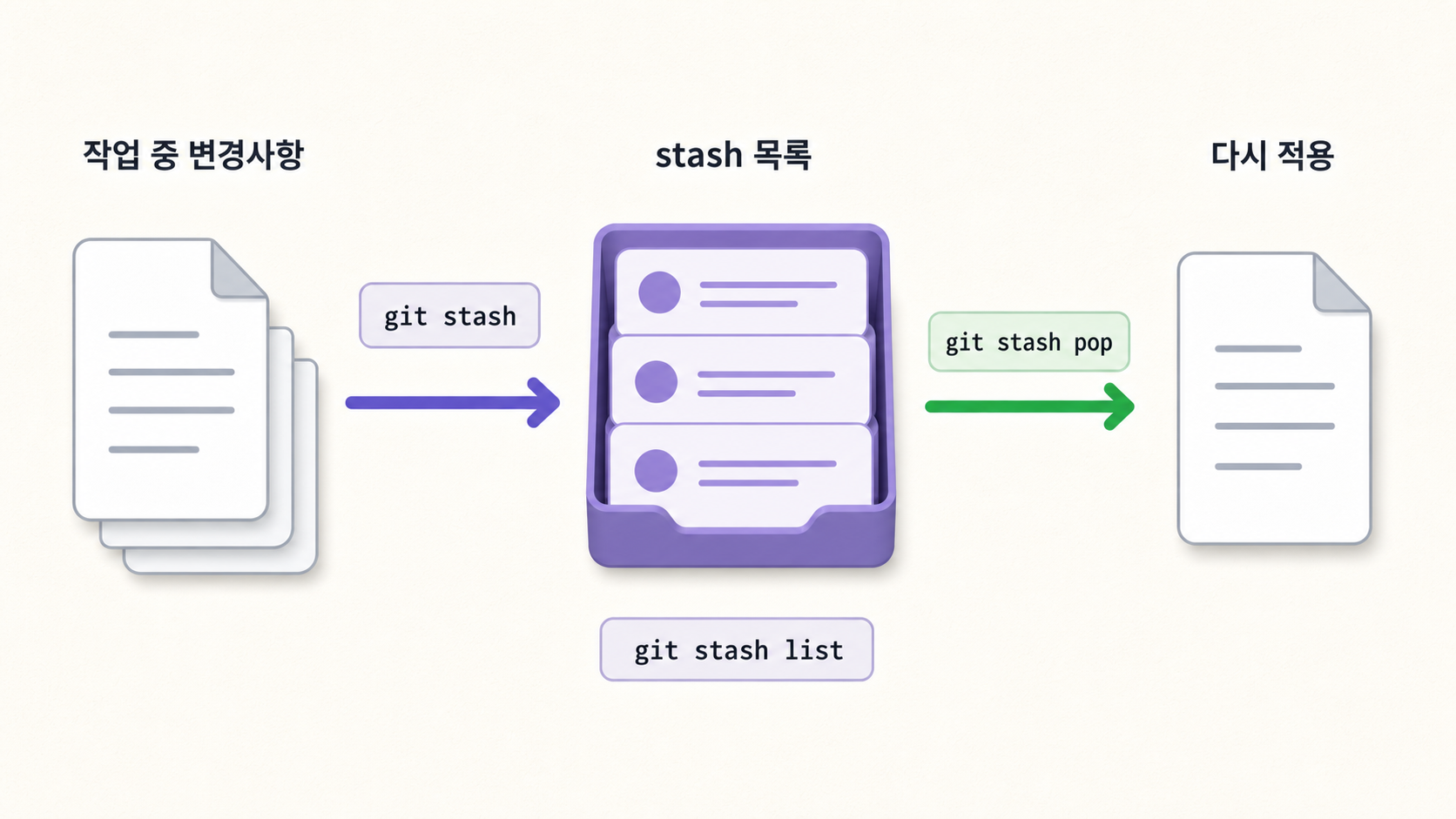
stash는 작업 중인 변경사항을 임시로 보관했다가, 나중에 다시 꺼내 적용할 수 있게 해준다.
git stash추적 중인 파일의 작업 디렉터리/스테이징 변경사항 임시 저장git stash -uuntracked 파일까지 포함해 임시 저장git stash -aignored 파일까지 포함해 임시 저장git stash liststash 목록 확인git stash pop저장한 변경사항을 다시 적용하고 stash 목록에서 제거 시도
7. 원격 저장소와 협업
원격 저장소는 내 작업을 공유하고 다른 사람의 작업을 받아오는 공간이다. fetch, pull, push가 각각 무엇을 하는지 구분해야 한다.
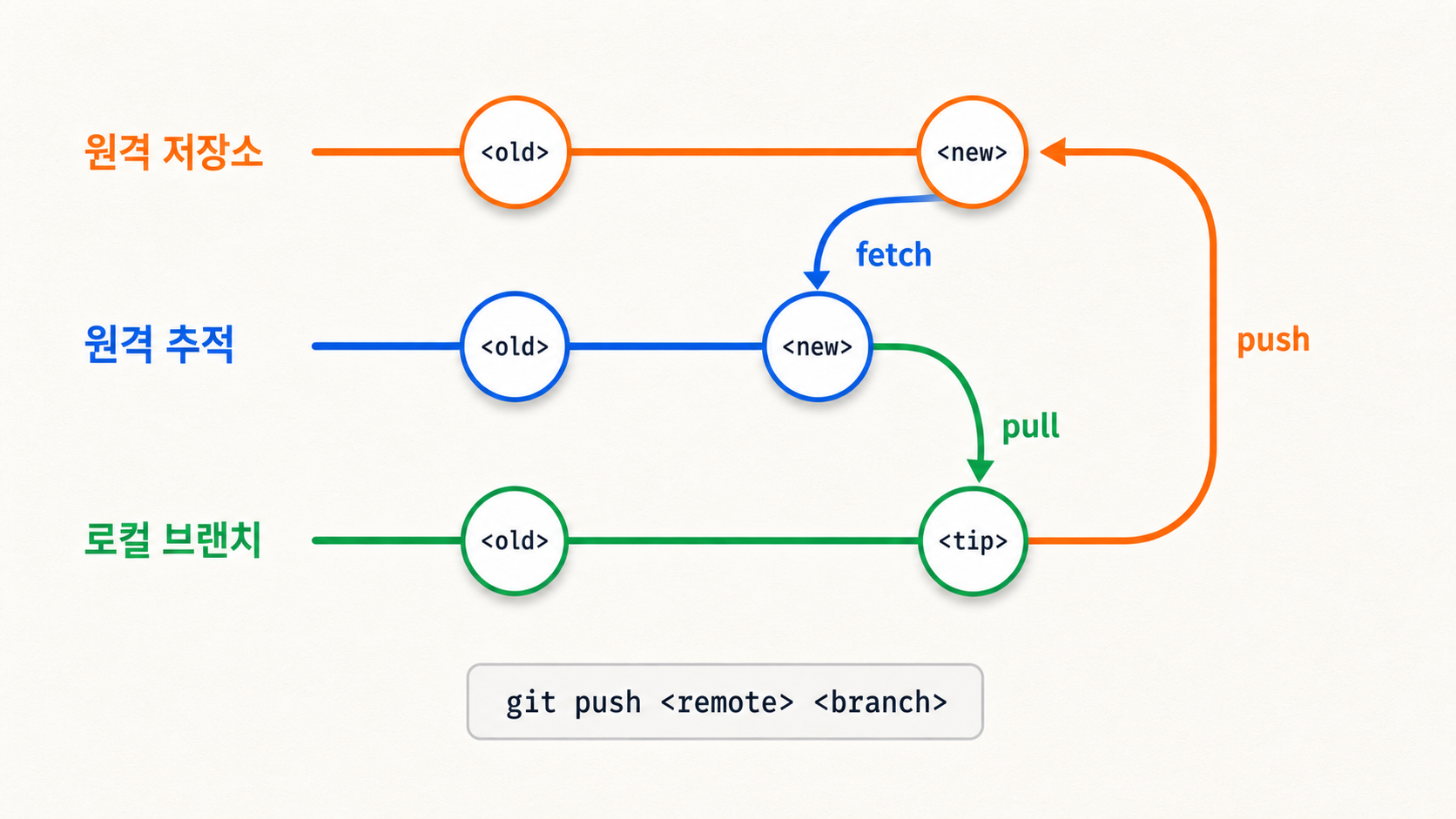
fetch는 원격 상태를 원격 추적 브랜치에 가져오기만 한다. pull은 가져온 원격 변경사항을 현재 브랜치에 통합하고, push는 로컬 커밋을 원격 저장소로 올린다.
git clone <url>원격 저장소를 로컬로 복제git fetch원격 변경사항을 가져오되 현재 브랜치에는 합치지 않음git pullfetch 후 가져온 원격 변경사항을 현재 브랜치에 통합git pull --rebasefetch 후 merge 대신 rebase로 통합git pull --no-rebasefetch 후 merge 방식으로 통합git pull --ff-onlyfast-forward가 가능할 때만 통합git push로컬 커밋을 원격에 업로드git push -u <remote> <branch>push하면서 upstream 추적 관계 설정
원격 추적 브랜치는 보통 origin/main처럼 표시된다. 실제 원격 브랜치는 원격 저장소에 있고, 로컬의 origin/main은 마지막 통신 시점의 원격 상태를 기억한다. 학습 환경에서는 o/main처럼 짧게 보이기도 한다.
git checkout -b <branch> <remote>/<branch>원격 브랜치를 기준으로 새 로컬 브랜치 생성 및 추적git branch -u <remote>/<branch> <local-branch>기존 로컬 브랜치가 원격 브랜치를 추적하게 설정git fetch <remote> <source>:<destination>원격 source를 로컬 destination으로 가져오기git pull <remote> <source>:<destination>가져온 뒤 현재 브랜치에 통합git push <remote> <source>:<destination>로컬 source를 원격 destination으로 업로드git push <remote> :<branch>원격 브랜치 삭제
8. 자주 쓰는 흐름
새 기능 작업
git checkout -b <branch>
git add .
git commit -m "message"
git push -u <remote> <branch>
원격이 앞서 있어서 push가 거부될 때
git pull --rebase
git push
또는
git fetch
git rebase <remote>/<branch>
git push
실수로 main에 커밋했을 때
아직 원격 main에 push하지 않은 상태이고, 커밋되지 않은 작업 변경이 없다면 다음처럼 새 브랜치를 먼저 만든 뒤 main을 원격 상태로 되돌릴 수 있다. --hard는 작업 디렉터리 변경까지 되돌릴 수 있으므로 먼저 git status를 확인해야 한다.
git status
git branch <new-branch>
git reset --hard <remote>/main
git switch <new-branch>
git push -u <remote> <new-branch>
이미 원격 main에 push한 커밋이라면 이 흐름보다 revert를 쓰거나 팀과 합의한 뒤 별도로 처리하는 편이 안전하다.
9. 주의 명령어
git reset --hard <where>실제 파일 변경까지 사라질 수 있음git push <remote> :<branch>원격 브랜치 삭제git branch -f <branch> <where>브랜치 포인터 강제 이동git rebase <shared-branch>공유된 커밋의 해시 변경 가능git commit --amend마지막 커밋을 새 커밋으로 재작성
Git is a tool for creating commits, moving branches, and merging diverged work back together. I found it much easier to understand when I focused on where pointers move in the commit graph.
1. Git's basic units
A commit is a record that saves a particular point in time of the project. A branch is a label that points to a commit, and HEAD is where I am currently looking.
- Commit: a point where changes are saved
- Branch: a pointer to a specific commit
- HEAD: the location I am currently working at
- Remote-tracking branch: a pointer that remembers the state of a remote branch locally
2. Recording
Changes first go to the staging area and are then recorded as a commit.
git add stages changes from the working files into the staging area, and git commit saves only the staged content as a new commit.
git add .stage changes under the current directorygit add <file>stage only a specific filegit commit -m "message"save staged changes as a commitgit commit -am "message"add and commit already-tracked files in one stepgit commit --amendedit the message or content of the last commit
--amend rebuilds the last commit as a new commit. Use it carefully on commits already pushed to a remote.
3. Moving
Branches are created to split up work streams. If you move to a branch you created and then commit, that branch pointer moves to the new commit.
If HEAD is attached to feature, your current working location is feature. Committing in this state appends the new commit after feature.
git branchlist branchesgit branch <branch>create a new branch at the current locationgit branch -d <branch>delete a merged branchgit branch -D <branch>force-delete a branchgit branch -f <branch> <where>force-move a branch to a specific locationgit checkout <branch>/git switch <branch>switch branchesgit checkout -b <branch>/git switch -c <branch>create a branch and switch to it
With relative references you can point to a location without knowing the commit hash.
HEAD^ points to the parent of the current commit, and HEAD~2 points to the commit two steps up from the current location.
HEAD^parent of the current commitHEAD~3the commit three steps up from the current location<branch>^2the second parent of a merge commit
4. Merging
The main ways to combine branches are merge and rebase. Both combine work but leave different commit graphs.
merge combines another branch's changes into the current branch. If a fast-forward is possible, only the branch pointer moves with no merge commit, and --no-ff forces a merge commit. The merge in the figure above is a non-fast-forward case.
rebase restacks the working commits after a new base branch so they form a single line.
git merge <branch>merge the specified branch into the current branchgit merge --continuecontinue a merge after resolving conflictsgit merge --abortabort an in-progress mergegit merge --no-ff <branch>create a merge commit even when fast-forward is possiblegit rebase <newbase>restack the current branch's commits onto a new basegit rebase <newbase> <branch>relocate the specified branch onto a new base
Use rebase carefully on commits you have already shared, because the commit hashes change.
5. Undoing and selecting commits
Of the undo commands, reset moves the branch pointer into the past, while revert records the undo as a new commit.
reset changes where the current branch points. revert leaves the existing commit in place and adds a new commit with the opposite changes.
git reset HEAD~1move the current branch one commit backgit reset --soft HEAD~1undo only the commit, keep staginggit reset --mixed HEAD~1undo the commit and staging, keep working filesgit reset --hard HEAD~1undo the commit, staging, and working file changesgit revert HEADcreate a new commit that undoes the changes
Local commits you have not yet shared can be cleaned up with reset, while commits already shared are safer to undo with revert.
cherry-pick picks only the changes of a specific commit from another branch and appends it as a new commit after the current branch.
git cherry-pick <commit1> <commit2>apply only specific commits to the current branch
cherry-pick is safer to run with a clean working tree. If a conflict occurs, resolve it and then continue.
rebase -i reorganizes the order, messages, and inclusion of recent commits.
git rebase -i HEAD~3edit the order, messages, and inclusion of recent commits
The commonly used options are pick, reword, edit, squash, fixup, and drop. Here you decide whether to keep a commit, change its message, combine it, or remove it.
6. Marking and temporary storage
A tag is a fixed label attached to an important commit. stash is for briefly setting aside changes that are not quite ready to commit.
git tag <tag>add a lightweight tag at the current HEADgit tag <tag> <commit>add a lightweight tag at the specified commitgit tag -a <tag> -m "message"create an annotated taggit push origin <tag>upload a specific tag to the remotegit push origin --tagsupload all local tags to the remotegit describedescribe the current location relative to the nearest annotated taggit describe --tagsdescribe relative to the nearest tag, including lightweight tags
stash lets you temporarily store in-progress changes and reapply them later.
git stashtemporarily save working directory/staging changes of tracked filesgit stash -usave including untracked filesgit stash -asave including ignored filesgit stash listlist stashesgit stash popreapply saved changes and try to remove them from the stash list
7. Remote repositories and collaboration
A remote repository is a place to share my work and receive others' work. You need to know how fetch, pull, and push differ.
fetch only pulls the remote state into the remote-tracking branches. pull integrates the fetched remote changes into the current branch, and push uploads local commits to the remote repository.
git clone <url>clone a remote repository locallygit fetchfetch remote changes without merging them into the current branchgit pullafter fetching, integrate the remote changes into the current branchgit pull --rebaseafter fetching, integrate by rebase instead of mergegit pull --no-rebaseafter fetching, integrate by mergegit pull --ff-onlyintegrate only when a fast-forward is possiblegit pushupload local commits to the remotegit push -u <remote> <branch>push and set up the upstream tracking relationship
Remote-tracking branches are usually shown as origin/main. The actual remote branch lives in the remote repository, and the local origin/main remembers the remote state as of the last communication. In learning environments it may appear shortened as o/main.
git checkout -b <branch> <remote>/<branch>create and track a new local branch based on a remote branchgit branch -u <remote>/<branch> <local-branch>make an existing local branch track a remote branchgit fetch <remote> <source>:<destination>fetch a remote source into a local destinationgit pull <remote> <source>:<destination>fetch and then integrate into the current branchgit push <remote> <source>:<destination>upload a local source to a remote destinationgit push <remote> :<branch>delete a remote branch
8. Common workflows
Working on a new feature
git checkout -b <branch>
git add .
git commit -m "message"
git push -u <remote> <branch>
When the remote is ahead and push is rejected
git pull --rebase
git push
or
git fetch
git rebase <remote>/<branch>
git push
When you accidentally committed to main
If you have not yet pushed to the remote main and have no uncommitted working changes, you can create a new branch first and then reset main back to the remote state, as below. --hard can also undo working directory changes, so check git status first.
git status
git branch <new-branch>
git reset --hard <remote>/main
git switch <new-branch>
git push -u <remote> <new-branch>
If the commit has already been pushed to the remote main, it is safer to use revert instead of this workflow, or to handle it separately after agreeing with the team.
9. Commands to be careful with
git reset --hard <where>actual file changes can be lostgit push <remote> :<branch>delete a remote branchgit branch -f <branch> <where>force-move a branch pointergit rebase <shared-branch>can change the hashes of shared commitsgit commit --amendrewrite the last commit as a new commit